

Artist Strategy
50+ Music Visualizer Ideas with Copyable Recipes for Musicians, Creators
50+ Music Visualizer Ideas with Copyable Recipes for Musicians, Creators
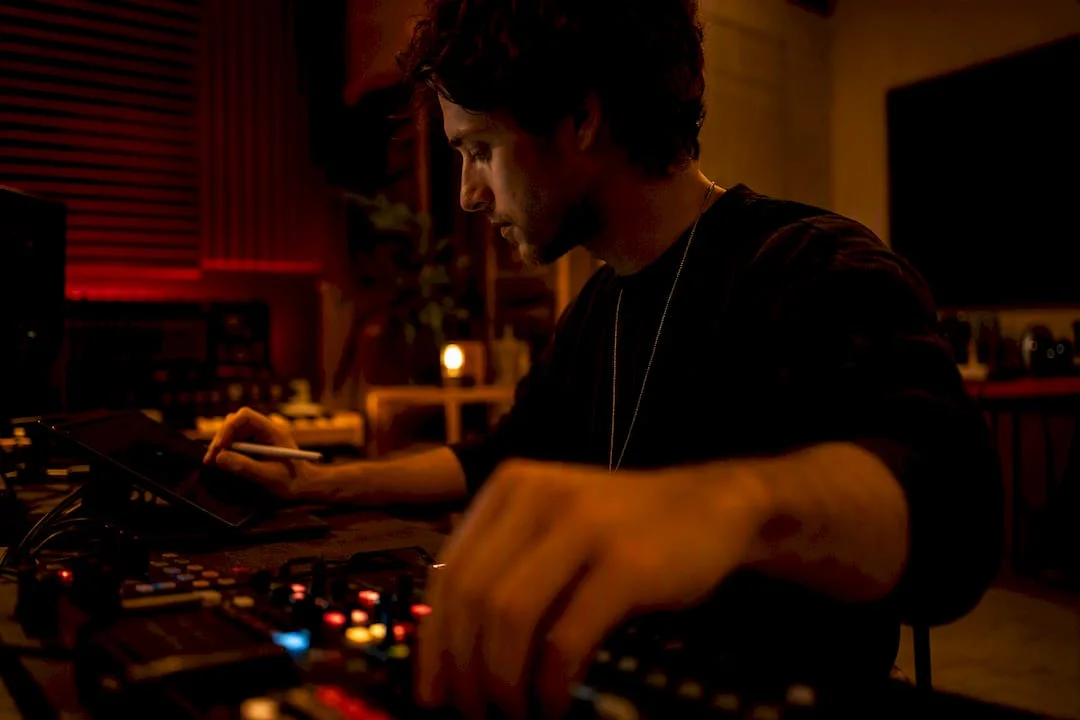
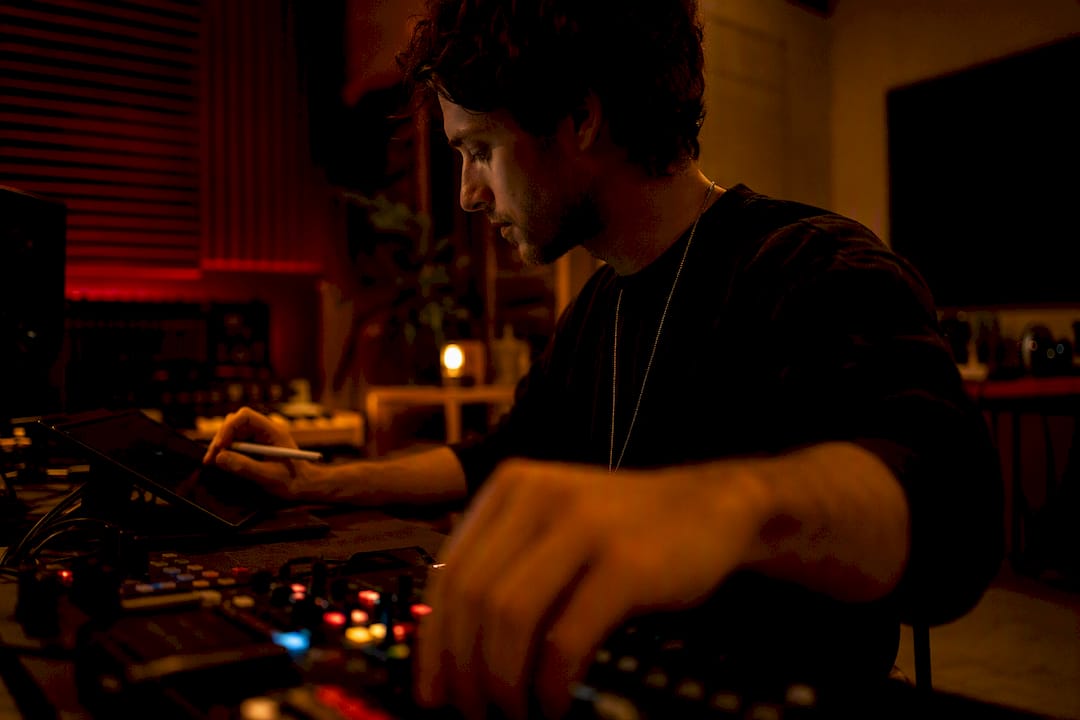
! Musician adjusting music visualizer setup in studio
This page gives you 50+ ready-to-use music visualizer ideas plus one rule for picking the right one: match mood and output format to your goal.
By DRVVYN · · 10 min read
50+ Music Visualizer Ideas with Copyable Recipes for Musicians, Creators
This page gives you 50+ ready-to-use music visualizer ideas plus one rule for picking the right one: match mood and output format to your goal. The visuals below come from real production workflows, not guesswork. Tools like the Web Audio API power most browser-based options, and DRVVYN Sound builds visualizers using these same principles for its own R&B releases.
TL;DR:
- Visualizer styles should be chosen based on the genre and mood, with waveform and spectrum bars suitable for energetic tracks, and organic particle or tunnel effects better for ambient or lo-fi music.
- Mapping three to five key audio features, such as bass energy, spectral centroid, and onset, creates engaging visuals without making them appear noisy or flat.
- Exported visualizers often drift out of sync due to different playback and rendering clocks, so frame-by-frame rendering ensures proper synchronization.
- Using tools like browser-based visualizers, video editors, or AI generators depends on the desired output format, with live setups suited for stage use and MP4 exports for online releases.
- Outsourcing visualizer creation to specialists like DRVVYN Sound can save time, ensure aesthetic consistency, and provide high-quality assets tailored to specific pacing and color schemes.
Music Visualizer Ideas Sorted by Style and Mood
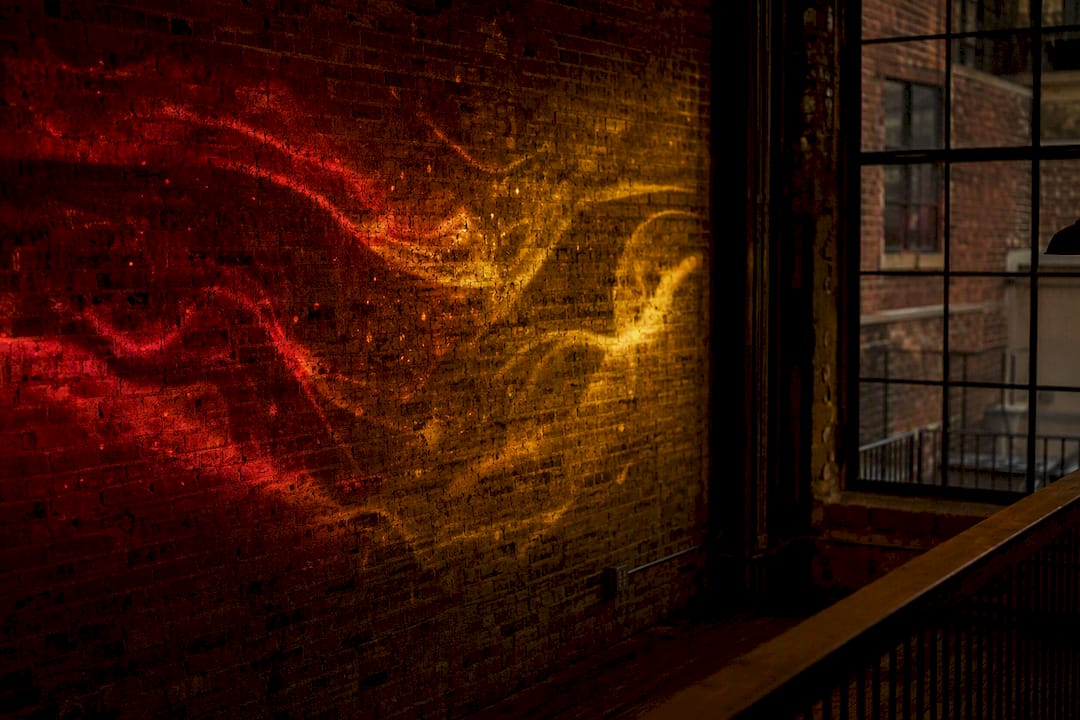
A visualizer is animated art synced to sound, distinct from a full music video because it skips narrative and performance in favor of pure motion tied to what you hear. That difference matters when you’re choosing what to build. Here’s a working menu, grouped by style, with a quick production note for each category so you know what to map and whether to render it or run it live.
Waveform and oscilloscope
- Classic horizontal waveform: map amplitude to line height. Best for acoustic or singer-songwriter tracks. Render for clean playback.
- Circular oscilloscope: waveform wrapped into a ring, pulsing outward on bass hits. Works well live at low latency.
- Mirrored dual waveform: stereo channels split top and bottom. Good for wide, layered production.
Spectrum bars and radial
- Vertical EQ bars: map frequency bins to bar height, colored by band. Standard for hip-hop and EDM.
- Radial spectrum burst: bars radiating from a center point, mapped to bass and mid energy. Great for high-tempo tracks.
- Rotating spectrum ring: slow rotation plus radial bars for ambient or lo-fi.
Particles
- Bass-triggered particle bursts: particles spawn on kick hits, drift and fade. Fits trap and electronic.
- Swarm particles following melody: particles cluster and scatter with the lead line. Cinematic R&B territory.
- Falling particle rain: gentle downward drift, opacity tied to overall energy. Good for ambient and lo-fi.
3D tunnels and geometry
- Infinite tunnel: camera moves through a geometric corridor pulsing to bass. Live-renderable with Three.js.
- Rotating polyhedron: shape scale mapped to RMS energy, rotation speed to tempo.
- Wireframe grid warp: grid distorts on transients. Strong for darker, moodier tracks.
Image-FX and album-art treatments
- Zoom-pulse album art: art zooms slightly on each beat. Simple, fast, effective for singles.
- Chromatic aberration glitch: RGB channels split on transients. Fits aggressive or distorted genres.
- Duotone color wash: album art recolored using two tones tied to spectral centroid.
Generative shaders and lyric-driven visuals
- Fluid shader backgrounds: organic color flow reacting to bass and mids. Popular for ambient releases.
- Kinetic typography: lyrics animate in sync with vocal onset. Works for lyric-forward tracks.
- Word-cloud pulse: key lyric phrases scale and fade with vocal energy.
Loop-based and minimal
- 15 second Canvas-style loop: static frame with subtle bar pulse, ideal for playlist covers.
- Minimal line pulse: single animated line reacting to overall loudness. Clean and understated.
- Grain and noise overlay: film grain intensity tied to energy for a lo-fi aesthetic.
How to Pick the Right Visualizer for Your Track
Choosing a style starts with five questions, not a mood board. Answer them in order and the right format falls out naturally.
- What’s the goal? A single-day release needs something fast to produce. A live show needs something that reacts in real time.
- What’s the mood and genre? Aggressive genres pull toward sharp, high-contrast visuals, while ambient and lo-fi tracks favor flowing, organic animation.
- What’s the tempo and dynamic range? A slow ballad with quiet verses and loud choruses needs a visualizer with headroom to breathe, not constant motion.
- Where will it live? A square 1:1 loop for a playlist cover behaves differently than a vertical clip built for Reels or TikTok.
- How much time and budget do you have? A rendered video takes longer than a live visualizer preset but looks cleaner on repeat plays.
Once you’ve answered those, the recipe is simple: performance or promo teaser leans toward a live visualizer; a streaming release leans toward a rendered MP4; a social teaser leans toward a short vertical loop.
Pro Tip:Cap yourself at three to five mapped audio features. Visualizers that try to react to everything at once usually end up looking noisy rather than musical, while visualizers with too few mapped features feel flat and lifeless.
Tools and Workflows: Live, Browser, Editor, or AI
Your output format decides your tool, not the other way around. Real-time VJ software is built for the stage, where a visualizer needs to react instantly and route out over HDMI or NDI to a projector or LED wall. Browser-based visualizer studios sit in the middle. A project like the browser-based music visualizer on GitHub offers modes like Lissajous, Spirograph, and Tunnel, along with track analysis for BPM and energy, then exports frame-by-frame MP4 or WebM at 720p or 1080p.
Classical editors like After Effects give you the most control when you need precise keyframing or compositing layered over footage, but they take longer per second of output. AI image-to-video generators fill the gap when you need a fast asset with minimal manual work, and tools like the AI image-to-video generators covered by Squish Games can turn a still image into short animated clips in minutes.
One technical detail trips up a lot of first-time creators: playback and export use different clocks. A visualizer that looks perfectly synced live can drift out of time once exported, because real-time playback and frame-accurate export rely on different timing systems. The fix is to render frame-by-frame rather than capturing a live screen recording.
Three example workflows:
- Live set: VJ software outputs to HDMI or NDI, synced to a DJ mixer feed.
- Streaming release: browser visualizer exports PNG sequence or MP4, then gets color-graded in an NLE.
- Social teaser: AI generator produces a base clip, then gets cropped vertical for Reels or TikTok.
Audio Mapping: What to Track and How to Smooth It
Six signals cover almost every visualizer you’ll ever build: overall energy (RMS), bass energy, mid energy, high energy, spectral centroid, and onset or transient detection. Bass energy typically maps to scale or size, since low end reads as physical weight. Spectral centroid, which measures how “bright” a sound is, maps well to hue since brighter timbres often read as warmer or more saturated color.
Raw audio data is jumpy by nature, and an unsmoothed visualizer will jitter every time a kick drum hits slightly harder than the last one. An attack/release approach smooths that out: fast attack lets the visual respond quickly to a hit, slower release lets it decay naturally instead of snapping back. Add a noise floor gate so quiet passages don’t trigger false movement, and use log-spaced frequency bands rather than linear ones, since human hearing itself is logarithmic.
Common problems have simple fixes:
- Jittery visuals: increase smoothing or raise the noise gate threshold.
- Dead or flat visuals: add auto-gain or adaptive normalization so quiet sections still register motion.
- Motion that feels mismatched to the music: reassign which feature drives which visual property, or lower overall sensitivity.
Keeping mapped features to three to five is one of the most consistently repeated pieces of advice among motion-design practitioners building audio-reactive tools, and it’s the fastest way to make a visualizer feel intentional rather than chaotic.
Starter Presets You Can Copy Right Now
These five recipes give you a starting point instead of a blank canvas.
- Ambient: map bass energy, spectral centroid, and RMS. Palette: deep blue to violet. Motion: slow drift, gentle particle rain.
- Lo-fi: map RMS and mid energy only. Palette: sepia and muted gray. Motion: grain overlay, minimal line pulse.
- Upbeat electronic: map bass, onset, and high energy. Palette: neon cyan and magenta. Motion: radial spectrum burst, particle bursts on kick.
- Cinematic R&B: map bass, centroid, and onset. Palette: gold and crimson. Motion: swarm particles following the vocal line, slow tunnel push.
- High-contrast/aggressive: map onset, high energy, and RMS. Palette: black and white with red flash. Motion: chromatic aberration on transients.
For AI prompt templates, try: “slow-moving gold and crimson particle field reacting to bass,” “cinematic tunnel with warm light flares pulsing on the beat,” or “grainy sepia film loop with a subtle vocal-driven glow.” Export at 1080×1080 for a 30 second square loop, 1920×1080 for a full upload, or 1080×1920 for a vertical 15 to 30 second clip. Pick a thumbnail frame with strong contrast, and check your loop seam by watching the last two seconds transition into the first two.
How DRVVYN Sound Approaches Visual Palettes
DRVVYN Sound builds its visual identity around gold and crimson, a palette chosen for late-night introspection rather than daytime energy. Pacing follows the same logic: a slower song gets a visualizer with room to breathe, while a track built for movement gets faster particle work and tighter cuts. A short visualizer typically comes out on release day, with a full cinematic video following later once the song has had time to find its audience, a sequencing choice echoed in broader industry guidance on visualizer-to-video timing. Before committing to a full video, DRVVYN often tests two thumbnail variants on a short loop to see which one holds attention longer. That approach shaped the visuals in DRVVYN’s late-night visualizer work, where the goal was mood first, movement second.
— DRVVYN Sound
Commission a Visualizer Instead of Building One From Scratch
Every workflow above takes time you may not have between writing, recording, and promoting a release. DRVVYN Sound builds cinematic visualizers, short social clips, and release-day visual assets as part of its production work, using the same gold-and-crimson palette and pacing choices described above, so you get a finished visual without learning smoothing curves or export clocks yourself. If you want to see the aesthetic in motion before deciding, browse DRVVYN Sound’s video work or check out Late-Night Music Visualizer Experiences for Night Owls as a case example, then reach out about commissioning a visualizer for your next release.
Sources
- How I built an audio-reactive 3D visualizer with Three.js and the Web Audio API
- Browser-based music visualizer (compose/animate/export) — GitHub
- Visualizer vs Music Video: What’s the Difference, and Which Should You Release? | Pixo
- Music Visualiser Deep Dive: How It Works and Why It Pops
- Creative Ideas for Your Next Music Visualizer | LYRICS VIDEO 4 U
FAQ
What are some good music visualizer ideas?
Waveform and oscilloscope styles, spectrum bars, particle fields, 3D tunnels, and lyric-driven typography all work well, with the right choice depending on your genre and whether the output is live or rendered.
How can I make a visualizer for my music?
Pick a style that matches your mood and tempo, map three to five audio features like bass energy and onset, then either run it live in VJ software or export it as an MP4 through a browser-based tool or editor.
What are visualizers for music?
A visualizer is animated art synced to a track, usually released faster and at lower cost than a full narrative music video, often used as launch-day content ahead of a bigger video release.
How do I choose the right audio visualizer?
Match the visualizer’s mood, tempo response, and format to your goal: a live show calls for real-time VJ tools, a streaming release calls for a rendered video, and a social teaser calls for a short vertical loop.
What’s the difference between a visualizer and a lyric video?
A visualizer reacts to sound with abstract or generative motion, while a lyric video centers on animated text timed to the vocal, though the two styles increasingly overlap in kinetic typography pieces.