

Music Marketing
Spotify Canvas: Export Checklist, 1080px Templates for Indie Artists
Produce Spotify Canvases ready to upload with an export checklist, 1080px H.264 presets, and quick 3–8 second production recipes for indie artists.
By DRVVYN · · 9 min read
A Spotify Canvas is a vertical loop of a few seconds that replaces static album art on mobile, and if you have Admin or Editor access in Spotify for Artists, you can upload one right now. The file needs to be MP4 or JPG, shot at a 9:16 ratio, and between 720 and 1080 pixels tall, with no audio attached. That’s the whole gate; everything else in this Spotify Canvas guide is about clearing it cleanly and making the loop actually worth watching.
TL;DR:
- Canvas uploads must be 9:16 aspect ratio, between 720 and 1080 pixels tall, and contain no audio, with a duration of 3 to 8 seconds.
- Only main artists with Admin or Editor access in Spotify for Artists can upload or edit Canvas, requiring correct role and release version.
- Rebound loops created with a forward and reverse playback are the fastest way to produce seamless, attention-grabbing Canvas visuals.
- Canvas is most effective when it complements the song’s mood and visual identity, avoiding text, rapid cuts, or distracting effects.
- Professional visual services can produce high-quality Canvas content for artists who prefer to outsource the creation process.
Spotify Canvas Specs, Export Checklist, and Loop Types
Spotify’s own Canvas guidelines set a narrow but firm lane: vertical 9:16 aspect ratio, 720 to 1080 pixels in height, MP4 or JPG format, running 3 to 8 seconds, and silent. No exceptions on the audio rule. A file with even a whisper of embedded sound gets rejected.
Before you export anything, run through this checklist:
- Confirm the frame is 9:16 (a 1080×1920 export is the safest bet for most editing apps).
- Trim the clip to fall between 3 and 8 seconds. Anything shorter or longer bounces back.
- Strip the audio track entirely, even silent placeholder tracks can trigger a flag.
- Export as MP4 (H.264) for video or JPG for a still-motion loop.
- Watch your file size. Spotify doesn’t publish a hard cap, but leaner files upload faster and preview more reliably.
On loop type, you have three real options: continuous motion (footage that flows seamlessly from end to start), a hard cut (the clip simply restarts, which works for percussive or high-energy visuals), and a rebound loop (forward motion that reverses itself, covered in detail later). Pro Tip:Export at 1080 pixels tall rather than the 720 minimum. It costs you nothing in file size on a short clip, and it looks sharper on newer phones.
Who Can Add a Canvas and What Access Do You Need?
Not everyone on a release gets to touch its Canvas. According to Spotify’s help documentation on adding a Canvas, you qualify if you’re the first main artist listed on the track, or a main artist on the release overall, and you hold an Admin or Editor role in Spotify for Artists.
A few access notes that trip people up:
- Featured artists and collaborators without a main-artist credit usually can’t add or edit a Canvas themselves.
- If a label manages your distribution, ownership of the release profile may sit with them; you’ll need Editor or Admin rights granted on that specific account.
- Always double-check you’re editing the correct version of a release; if there’s a single edit, deluxe edition, or remix, the Canvas has to be attached to the right one.
- Claim your Spotify for Artists profile first if you haven’t. Without it, none of this is available to you.
How to Upload a Canvas: Step-by-Step for Web and Mobile
Spotify supports two upload paths, and the sequence is nearly identical on both, per its official walkthrough.
On desktop or web:
- Log into Spotify for Artists and open the Music tab.
- Select the track you want to attach a Canvas to.
- Click “Add Canvas.”
- Upload your MP4 or JPG file.
- Preview the loop as it will appear in the Now Playing screen.
- Save.
On the mobile app:
- Open Spotify for Artists on your phone.
- Tap Music, then select your track.
- Tap Canvas, then choose upload or create.
- Preview the file.
- Save.
The preview step matters more than people assume. Since Canvas is a mobile only feature that never shows up on desktop or web players, you have to check it on an actual phone to know if it works. Watch for two things: whether Spotify’s UI (the progress bar, artist name, like button) crops or overlaps your subject, and whether the loop still plays smoothly with Data Saver mode switched on.
Pro Tip:Attach your Canvas at least a few days before release day, not the morning of. Give yourself time to catch a rejected upload and re-export without racing the clock.
Creative Best Practices: What Actually Works in 3 to 8 Seconds
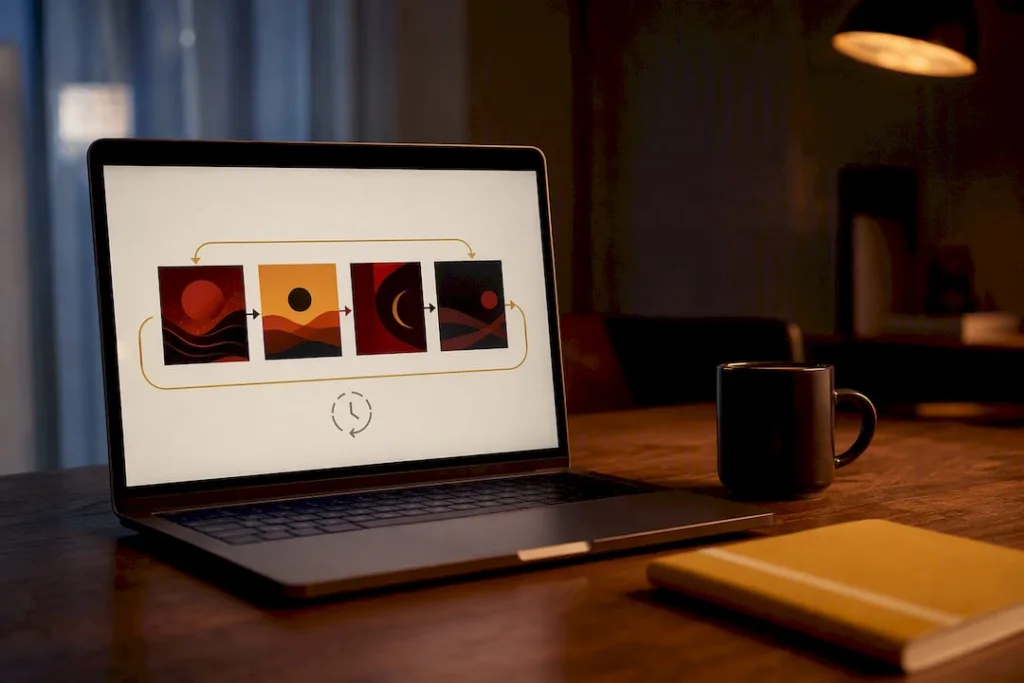
The biggest mistake artists make with Canvas is treating it like a mini music video. It isn’t. It’s a mood, a texture, a visual echo of the song, running on a loop small enough to fit in someone’s palm while they scroll.
Spotify’s own creative guidelines are specific: skip song titles, artist names, and any on screen text, since that information already lives in the Now Playing view. Skip lip syncing or spoken dialogue too. And avoid rapid cuts or aggressive flashing, effects that read as chaotic on a five inch screen even when they looked fine on a monitor.
What tends to work instead:
- Slow motion textures: smoke, rain on glass, light through fabric, film grain drifting across a still frame.
- Micro performance clips: a few seconds of you at the mic or on an instrument, shot tight, no cuts.
- Animated versions of your cover art: a subtle glow pulse, a slow zoom, a color shift timed loosely to the song’s energy.
| Design choice | Why it works |
|---|---|
| Slow, ambient motion | Reads clearly at small size, doesn’t fight the UI overlay |
| Matching visual tone to song energy | Reinforces mood instead of distracting from it |
| Reusing cover art elements | Builds a cohesive visual identity across singles |
| Safe margins around the frame edge | Protects your subject from being cropped by Spotify’s UI |
If you’re repurposing an Instagram Reel or Story for Canvas, check those safe margins carefully. Vertical social content is efficient to reuse, but a caption or graphic that sat fine on Instagram might land right under Spotify’s play bar. For a wider set of shootable concepts, DRVVYN Sound’s music visualizer ideas breaks down loopable recipes you can adapt straight into a Canvas export.
Common Canvas Upload Errors and How to Fix Them
Most rejections trace back to one of four things: wrong duration, embedded audio, the wrong aspect ratio, or a pixel height outside the 720 to 1080 range. Spotify’s upload gate is strict about all four, and it won’t tell you exactly which rule you broke, so check each one manually before you re-upload.
If the file uploads fine but you can’t see it play:
- Confirm you’re testing on a phone, not a browser tab. Canvas simply doesn’t render on desktop.
- Toggle Data Saver off in your Spotify app settings and try again.
- Force close and reopen the app; cached Now Playing screens sometimes lag behind a fresh upload.
If the upload button won’t even appear:
- Check that you’re logged in as the correct role, Admin or Editor, on the right artist profile.
- Verify you’re on the exact release version (single edit vs. deluxe vs. remix) the Canvas belongs to.
When none of that resolves it, contact Spotify support directly and include your file’s exact specs (duration, resolution, format) along with the track’s Spotify URI. Vague tickets take longer to resolve than specific ones.
How Canvas Gets Seen: Metrics and Sharing
Canvas earns its spot on a release page not by driving streams directly but by keeping people from scrolling past your track without engaging. It surfaces in the Now Playing view, in some Home feed placements, and notably, when a listener shares your track to Instagram Stories, the Canvas loops right in that Story with a built in “Play on Spotify” link attached.
That share behavior is worth designing around:
- A visual that looks good as a five second Story background gets shared more.
- Spotify for Artists reports Canvas view and play data alongside your track analytics, so track it over a few releases rather than judging one clip in isolation.
- Pair a strong Canvas with a Spotify playlist discovery strategy so the two reinforce each other during a release push.
Editing Shortcuts DRVVYN Sound Uses for Canvas Production
The rebound loop, footage played forward then reversed, creates a seamless cycle without any complex seam matching, and it’s the fastest way to get a clean loop from a single short clip. Build a preset export template once (9:16, 1080px, H.264, no audio track) and reuse it every release. For A/B testing, keep two or three Canvas versions labeled by concept and swap them between singles to see which visual tone holds attention longer. A tighter project management workflow keeps those versions from getting lost between releases.
Why Canvas Is Part of Your Visual Identity, Not an Afterthought
A Canvas is often the first visual a new listener sees of you, before your face, before your name lands anywhere on screen. That five second loop is doing brand work whether you plan it or not. Test more than one version, retire the ones that feel stale, and keep the visual language consistent with your cover art and profile. If shooting and editing your own loops isn’t where you want to spend your time, professional visual support exists for exactly that gap.
— DRVVYN Sound
Want a Professional Canvas Without Learning to Edit Video Yourself?
Professional services exist for producing cinematic visual content built for exactly this kind of short form, high impact use, so if a DIY loop isn’t cutting it for your release timeline or the polish your song deserves, you don’t have to build one from scratch. This makes sense when you’re launching multiple singles in a short window, running a coordinated visual campaign, or simply don’t have footage that matches your song’s mood. Independent artists juggling a release calendar often find it faster to hand off the visual side entirely rather than reshoot and re-export loops between drops. Browse examples of that cinematic production style on the Piece of Peace release page, and reach out if you want a Canvas, visualizer, or full visual package built around your next single.
Sources
FAQ
What does a Canvas do on Spotify?
It replaces the static album art shown in the Now Playing screen with a looping 3 to 8 second silent visual, visible only on mobile.
How many streams on Spotify do you need to make $10,000?
Spotify’s per-stream payouts vary by market and licensing deal, so there’s no single stream count that guarantees a fixed dollar figure; a Canvas itself doesn’t generate stream revenue directly but can support the engagement that keeps listeners on a track longer.
What is the 30 second rule on Spotify?
Spotify counts a stream toward royalties based on listener playtime; Canvas doesn’t affect this threshold since it carries no audio of its own.
Where can I find Spotify Canvas templates?
Spotify doesn’t publish official templates, but its Canvas examples page shows real artist loops for inspiration, and DRVVYN Sound’s visualizer idea library offers copyable recipes you can adapt.